
Easily fire up a powerful AI chat model that runs for free on your home computer
Quickly install and run an open-source Llama model with vision capabilities on your personal Mac or Windows PC

Llamafile, by Mozilla, allows easy installation of open-source AI chat models
Mozilla, the maker of the Firefox browser, just released an open-source project called llamafile. Developed by Justine Tunney, llamafile is a system for easily installing and running open-source AI chat models on your home computer.
Without getting into too much detail about how it works, credit to Justine for her years of work on the Cosmopolitan libc package that made this possible. Credit also to Simon Willison for bringing this to my attention through his excellent blog.
Why use llamafile instead of a cloud service like ChatGPT?
The most powerful state-of-the-art performance is probably always going to come from commercial services like ChatGPT. So why would you install and use an open-source model with llamafile? Here are several reasons:
It’s free! Using an open-source model installed with llamafile instead of paying for ChatGPT Plus could save you $20 per month. Since llamafiles run on your home computer rather than in the cloud, the only cost is the electricity and the wear and tear on your CPU.
It can be used offline! Since llamafiles install and run on your computer, they don’t require access to the Internet. If your Internet connection is spotty or you do a lot of computer work outside your home, it could be hugely helpful to have offline access to AI chat!
It protects your data! Most of the commercial AI services are harvesting your usage data to protect their models, and users’ sensitive account and contact information has repeatedly been exposed in training data leaks.
It lets you to experiment with different models! Different models have different strengths and weaknesses. For instance, ChatGPT has so many guardrails that it’s largely useless for writing adventure stories that contain fight scenes. Thus, genre fiction writers may have much better luck with open-source models.
Install and use an AI chat model on your home PC in five easy steps
Here’s how to install and use the llamafile for LLaVA 1.5, a powerful model that can take both text and image prompts.
1. Fire up a command prompt.
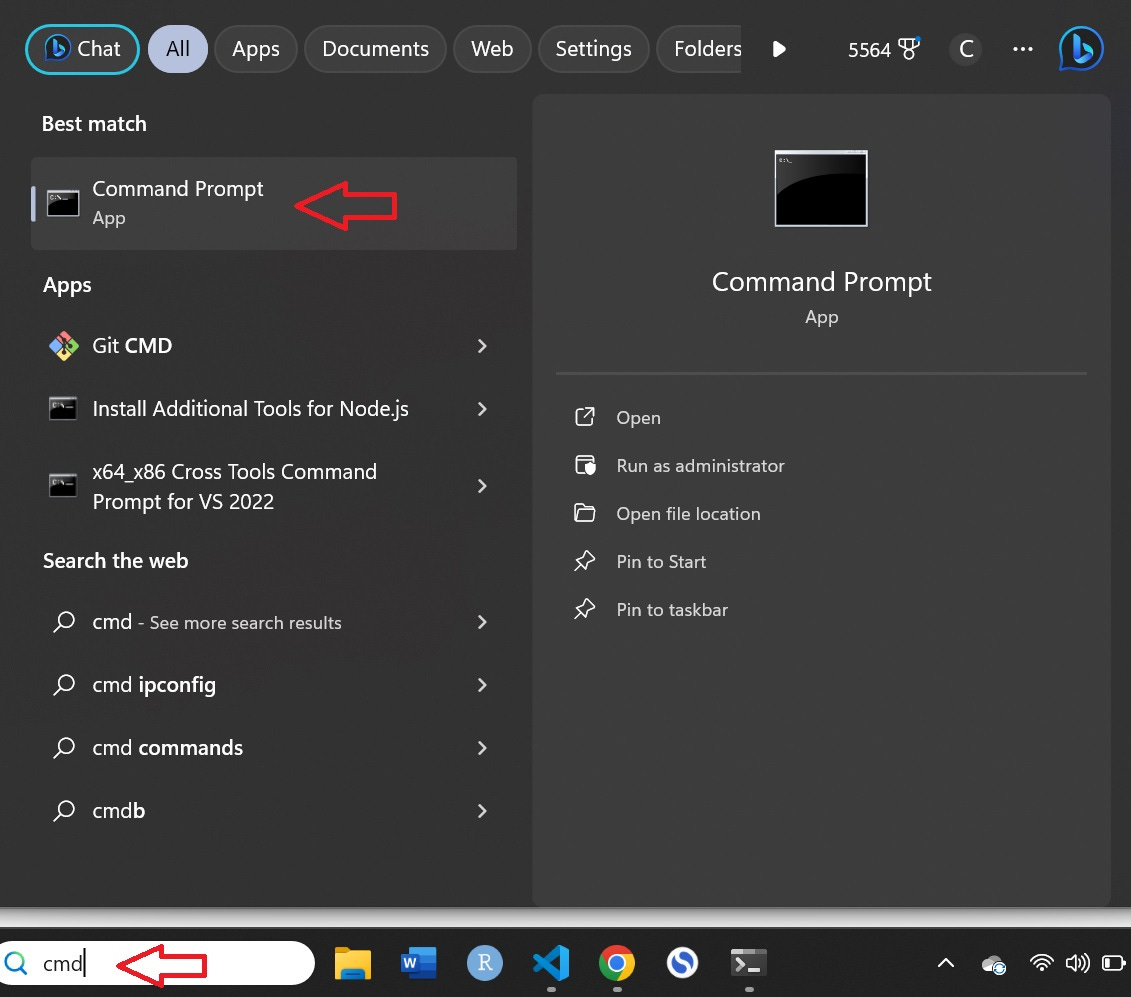
On Windows, you can type “cmd” into the search box next to the start menu and then select “Command Prompt” from the start menu popup.
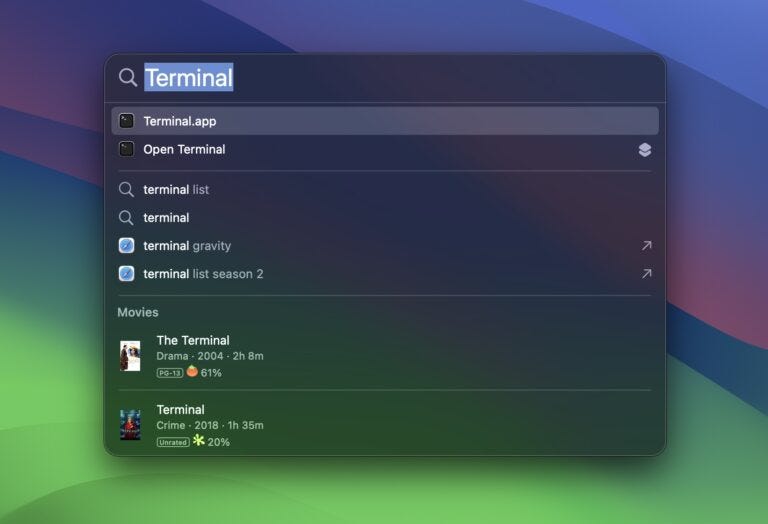
On a Mac, press Command + Spacebar to open Spotlight Search, then type “Terminal” and press Enter when the Terminal application appears in the search results.
2. Download the llamafile.
To download the llamafile for Llava 1.5, copy and paste this command into your terminal window and then press Enter:
curl -LO https://huggingface.co/jartine/llava-v1.5-7B-GGUF/resolve/main/llamafile-server-0.1-llava-v1.5-7b-q4
To copy and paste, you can highlight the text above and then use keyboard shortcuts: Ctrl + c for Copy and Ctrl + v for Paste in Windows, or Cmd + c for Copy and Cmd + v for Paste on a Mac.
Also note that this is a large file, so it may take a couple hours to download if you have a slow Internet connection like the Starbucks wi-fi I used. Make sure you don’t close your terminal window or restart your PC until the download is complete!
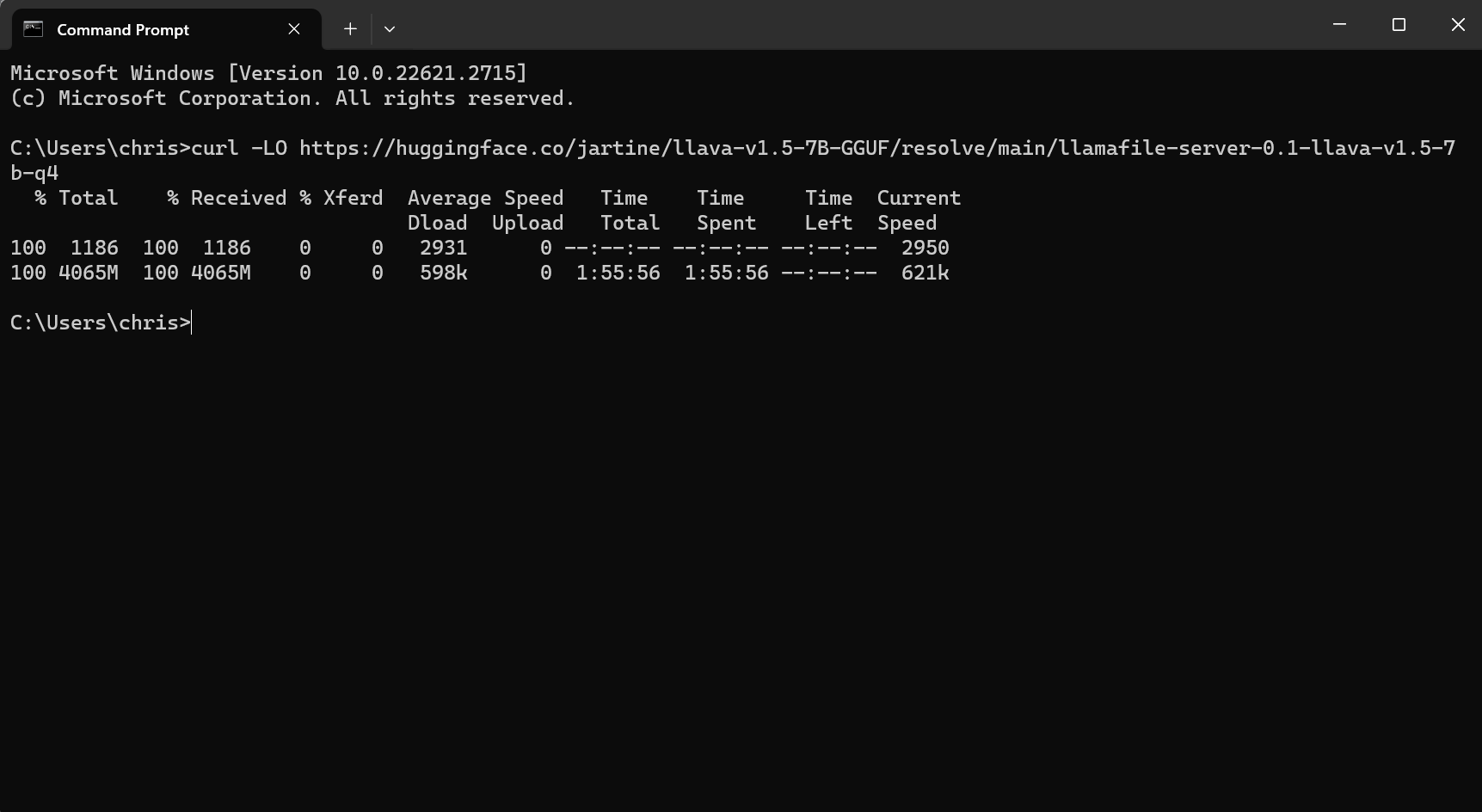
Note that you can also download the file manually by clicking this link. Just make sure you save the file to the default directory shown in your terminal. For instance, in the screenshot above, the default directory is shown as C:\Users\chris, so that’s where I would want to place the file if I downloaded it manually. (Downloading it through the terminal will automatically save it in the right place!)
3. Make the downloaded file executable.
In Windows, you will need to add ‘.exe’ to the filename of the downloaded file. You can do that manually, or just run this command from the shell:
ren "llamafile-server-0.1-llava-v1.5-7b-q4" "llamafile-server-0.1-llava-v1.5-7b-q4.exe"
On a Mac, run this command to give your system permission to execute the file as a program:
chmod 755 llamafile-server-0.1-llava-v1.5-7b-q4
4. Start the Llava 1.5 server
To start the server, use this command:
./llamafile-server-0.1-llava-v1.5-7b-q4
It may take a few minutes, but eventually you should see the text, “llama server listening at http://127.0.0.1:8080.” That indicates that your server is up and running.
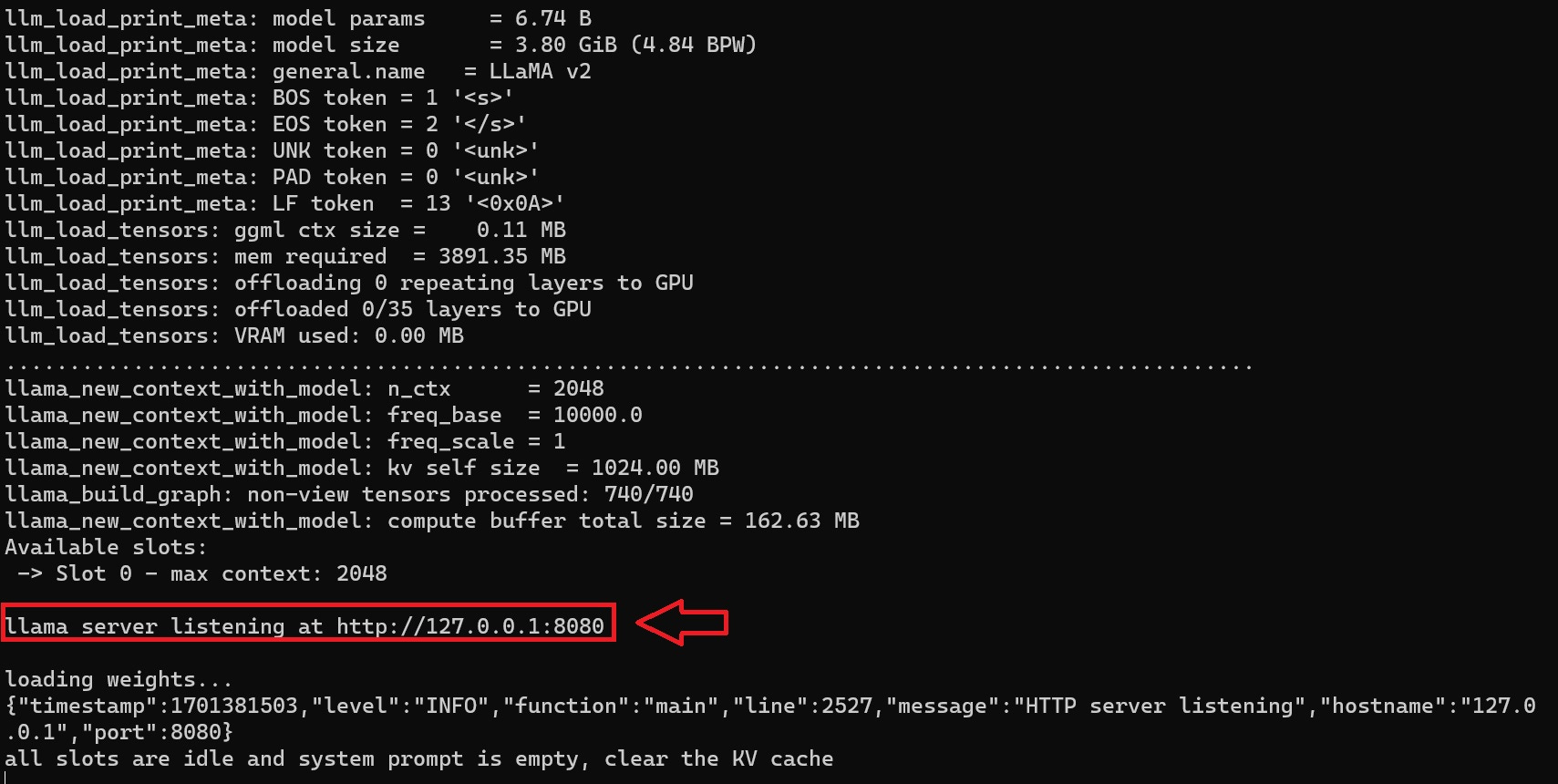
Note that it’s very important not to close this terminal window until you’re done using the AI chat model! (Your terminal window is now a “local server” on which the chat bot runs.)
5. Navigate to the URL in the browser.
Hold the Ctrl or CMD key and click the “http://127.0.0.1:8080” link in your terminal. Alternatively, you can open a web browser and paste that URL into the address bar. This will open an interface for Llava 1.5.
Note that even though you’re using a web browser, you’re not actually using the web. Your browser is connected to the offline server that you started from the terminal window: a “web app” that is running on—and only available from—your own PC.
Choose your settings and start a chat!
You will see a number of available settings, which you can change if you want. For instance, you might try experimenting with different system prompts.
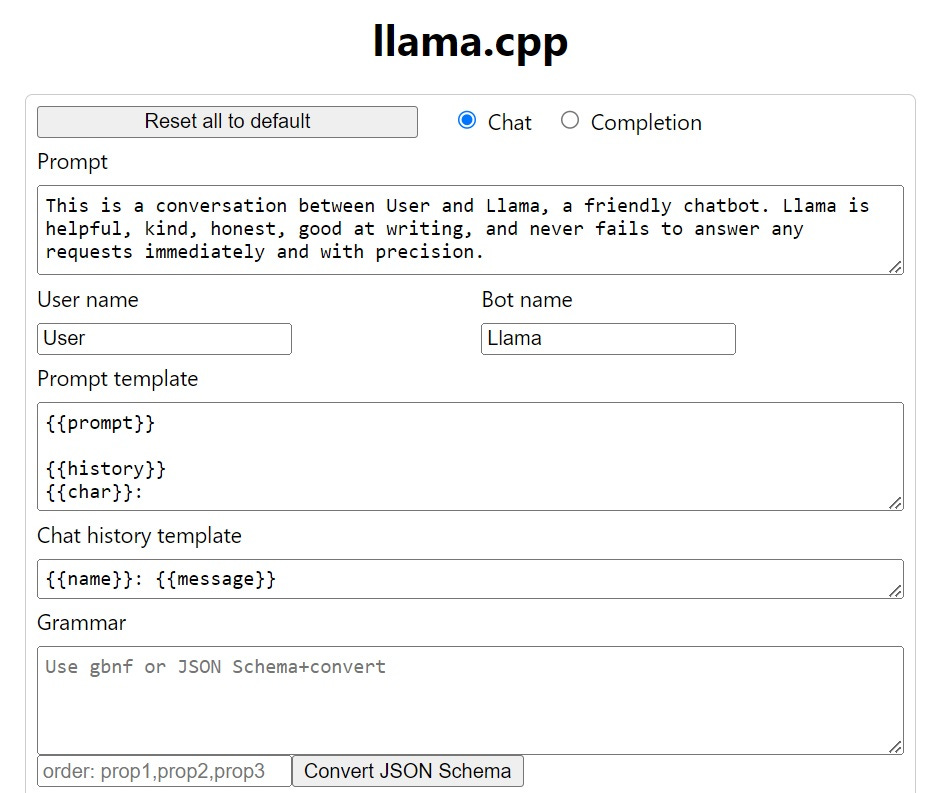
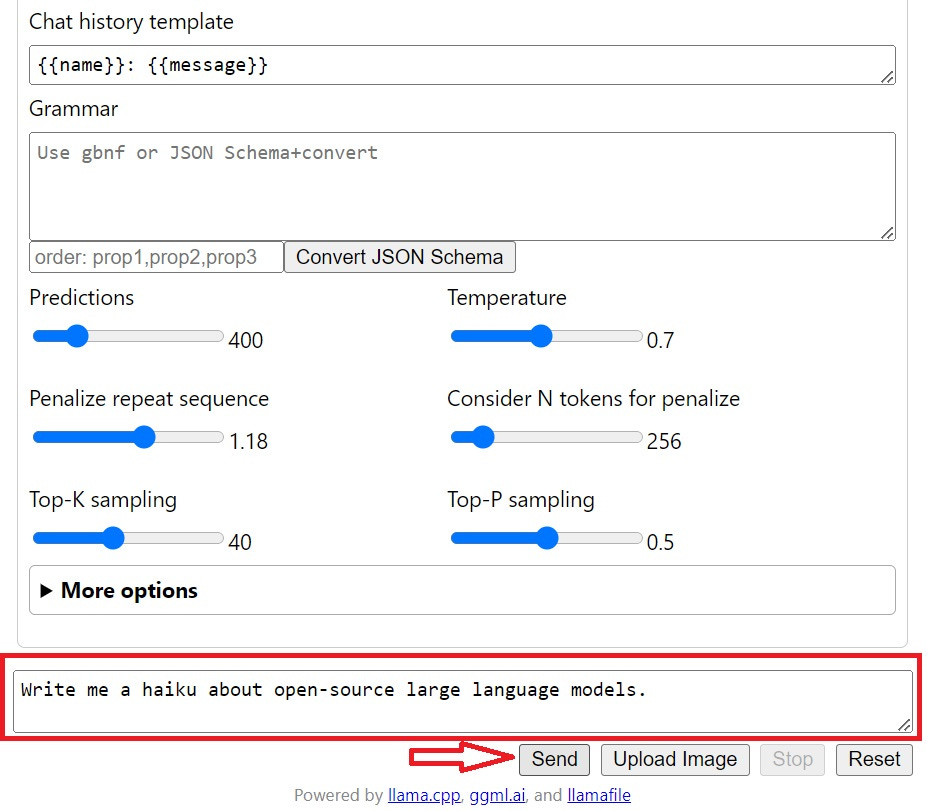
To start a conversation with the chatbot, scroll to the bottom of the page, enter a prompt in the “Say something…” field, and then click “Send.”
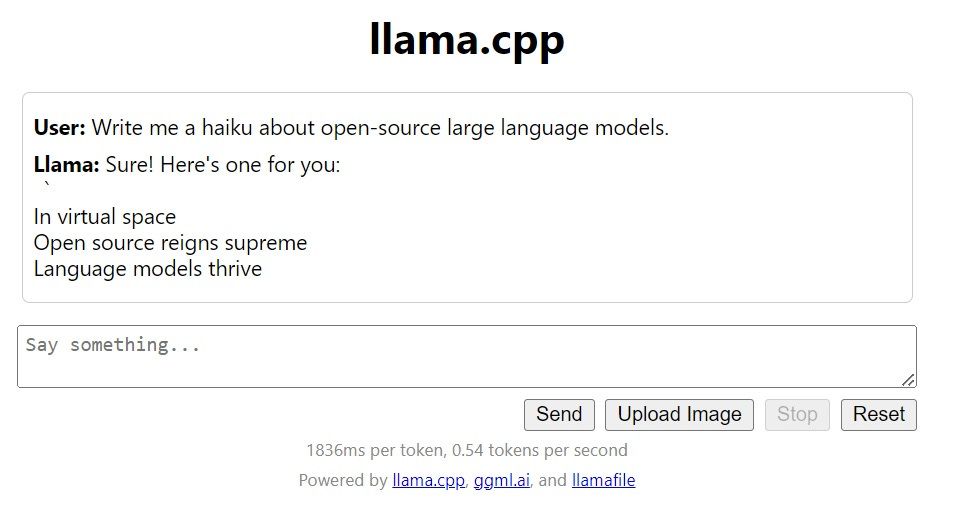
This will open a chat interface where the LLM will provide output, and you can keep the conversation going if you want. Depending on the speed of your computer, you may find that it takes several seconds to output each word. Unfortunately, this is unavoidable. These are pretty heavy models, and your Toshiba laptop isn’t really the hardware they’re meant to run on. Still, it’s pretty incredible that it works at all!
Conclusion
When you’re finished using the chatbot, just close the browser window and the terminal window you ran the server from.
Since you’ve already downloaded and installed the llamafile, you won’t need to repeat steps 2 and 3 next time you want to use it. Just start a terminal (step 1), start the local server (step 4), and open the link to the local server in a browser window (step 5).
You can also experiment with other models. For writing Python code, try downloading the Wizardcoder-13B-Python model from https://huggingface.co/jartine/wizardcoder-13b-python/resolve/main/wizardcoder-python-13b-main.llamafile. For a more general-purpose chatbot, download the Mistral-7B-instruct model from https://huggingface.co/jartine/mistral-7b.llamafile/resolve/main/mistral-7b-instruct-v0.1-Q4_K_M-main.llamafile. Just repeat the instructions above, but replace the download link and file name.
Thanks to the incredible work of open source developers, these and other models are getting easier and easier to deploy locally on home computers. That makes us all less dependent on big technology companies like OpenAI, which can only be a good thing.